
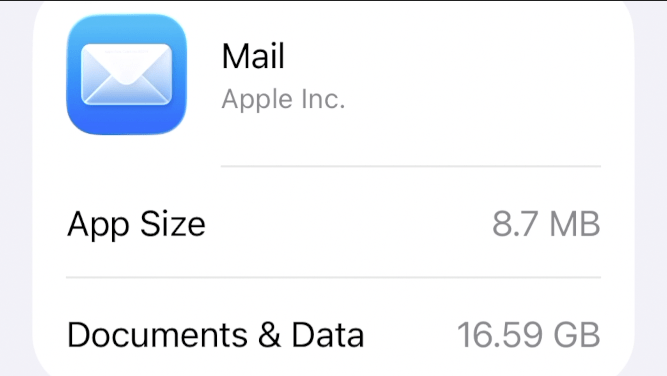
If your Apple Mail app is taking up GB of storage on your iPhone and you can’t find a way to reduce it, then this article should provide the fix for you.
The fourth option solved it for me bringing the storage size down from 16GB to well under 1 GB.
Watch the video above to see it in action.
To find out how much storage the Apple Mail app is taking up go into Settings > General > iPhone storage. Mine was an impressive 16GB!
In order of difficulty these are the fixes to go through:
- Clear your Junk and Bin emails. Go into your email, go to Junk, select all and delete it. Then go into Bin and do the same. Go back to iPhone storage to see any impact.
- Go into your Mail app and tap on Edit, then select the Attachments folder that appears. You’ll now be able to see all email that has an attachment, but unfortunately it doesn’t tell you what size attachments there are. In fact, it’s better to delete large emails direct from your email client in a browser using the advanced search options, for example Gmail lets you select emails that have an attachment over a certain size.
- First check you know your email passwords in a browser and then go into Settings > Apps > Mail > Mail Accounts and remove them one by one. Restart your phone and check storage size again. For many people this is the fix. Add them back in if it’s fixed it.
- If none of these work, then it’s likely a bug and you’ll need to do the same fix as worked for me. Deleting and reinstalling the Mail app. Hold the app down, tap on Remove app and if you don’t have another email app (I use Zoho as a second one, but there are many others available), then you’ll need to add another as you have to have a default app. Once you have another Email app you can then delete Mail. Re-download it and add the email accounts back in.
If you have any other good solutions that worked for you, then please share them with others in the comments.

