
I had a problem. One of my favourite mobile games, Army of Darkness Defence, is no longer available on the App Stores and won’t even run on new devices.
Indeed, videos of that game launched the Follow That channel as they were the first ones to go viral many years ago and they are still popular, so I wanted to create a few more and to even do a live stream.
The good news was that it still runs on my old iPad 2 which led me on a wild goose chase across the internet to find out if I could livestream from the device or even get a video output or screen recording of the gameplay to work with.
After a great deal of research I managed to find the right setup and hardware to allow me to capture video from my iPad 2 and re-release footage of Army of Darkness Defence to the internet!
Watch the video above to see my setup.
- My iPad is a iPad 2 A1396. I can’t update it, run any streaming or video capture apps and AirPlay isn’t even an option on a device that old. There’s no screen recording option.
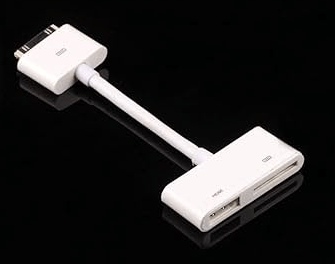
- An old school 30-pin to USB charger can’t export video, so I bought an Apple 30-Pin Digital AV Adapter off eBay (there are plenty available but it must be a genuine Apple product MC953ZM/A) which has an HDMI output and can export video
- I dug out an HDMI to HDMI cable from my pile of cables – these are easy to find and readily available if you don’t have one already
- Next you need a video capture card. As the video quality is low on such an old device you don’t need to spend much here if you’re just using it for this purpose. I bought a AV:Link 4K HDMI for around £10. Just make sure it’s HDMI output, USB input to connect to your laptop or desktop (see video above)
- Then you’ll need some way of capturing the video input from your iPad 2 on your laptop or desktop. I use OBS Studio to live stream (you can use most live streaming software, the main thing is getting the video input working) and it was a case of selecting ‘USB Video’ as the device (the video capture hardware) and it worked!
- Using OBS Studio or equivalent you can then do a screen record or a live stream and you are away
Much to my delight, this worked for me as soon as I’d plugged it in.
However, the second time I tried it it didn’t recognise the device and I had to restart my laptop, relaunch OBS Studio and switch the HDMI wire around, e.g. swapping which end was connecting to which device, and it worked again.
If you have another way of doing this, then let others know in the comments.
 Follow That